
Calling Amazon Translate from Delphi
Install the AWS SDK for Delphi, plug in credentials, and call Amazon Translate from an FMX app in under fifty lines of code.

Contents
This is the first post in a series on the AWS SDK for Delphi. We'll install the SDK, plug in some credentials, and build a small Delphi app that takes English text and hands it back to you in Japanese, Spanish, French, German, or any of around seventy-five other languages that Amazon Translate supports.
Amazon Translate sits comfortably in the AWS free tier for new accounts: 12 months, 2 million characters a month. You can experiment without watching the meter.
What you'll need
- Delphi 11.x, 12.x or 13.x (any edition from Professional to Architect).
- An AWS account. If you don't have one, sign up; they ask for a credit card but the free tier covers this tutorial.
- An Appercept AWS SDK for Delphi licence. After purchase you'll receive an email with your licence key and the credentials for access.appercept.com, which is where you'll download the installer.
- A pair of AWS access keys (an access key ID and a secret access key) for an IAM user with permission to call Translate.
Installing the SDK
Sign in to access.appercept.com with the details that arrived with your purchase. You'll see your downloads listed.
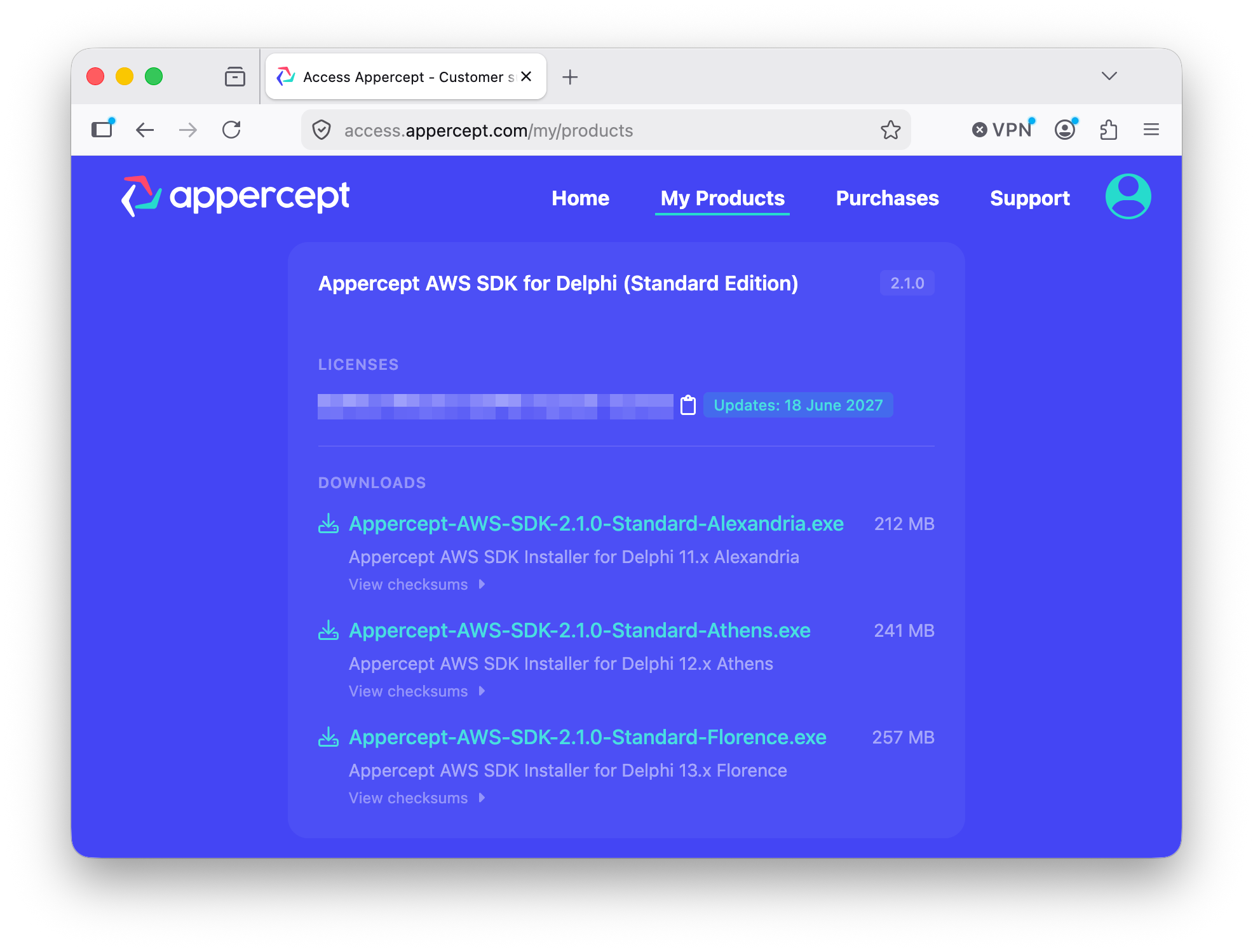
Grab the installer for your platform and run it. The installer opens by asking whether to install for all users or just you — Install for all users is the right choice for most setups, and Windows will show a UAC prompt to confirm. From there it walks you through a small handful of steps.
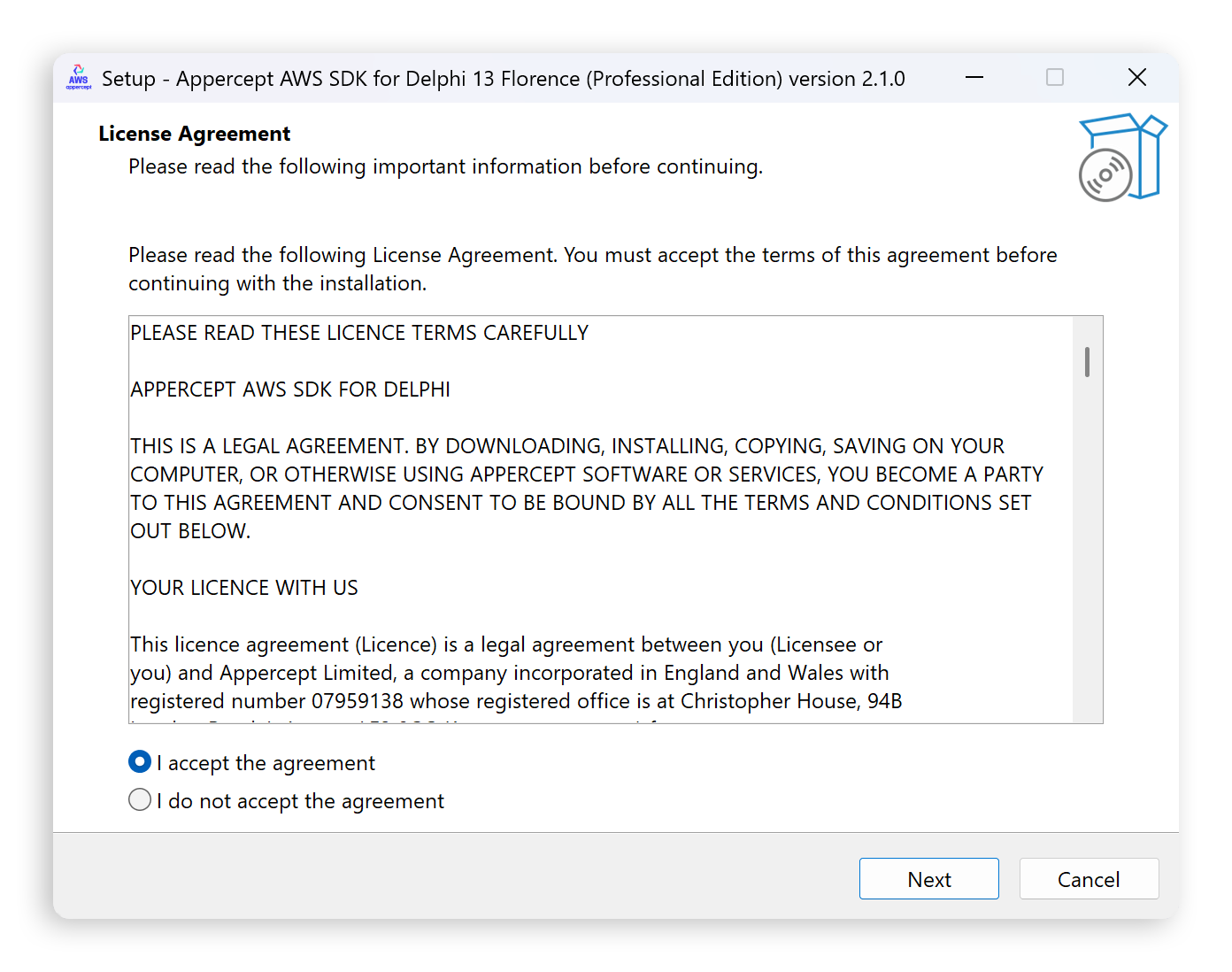
Read and accept the licence agreement to continue.
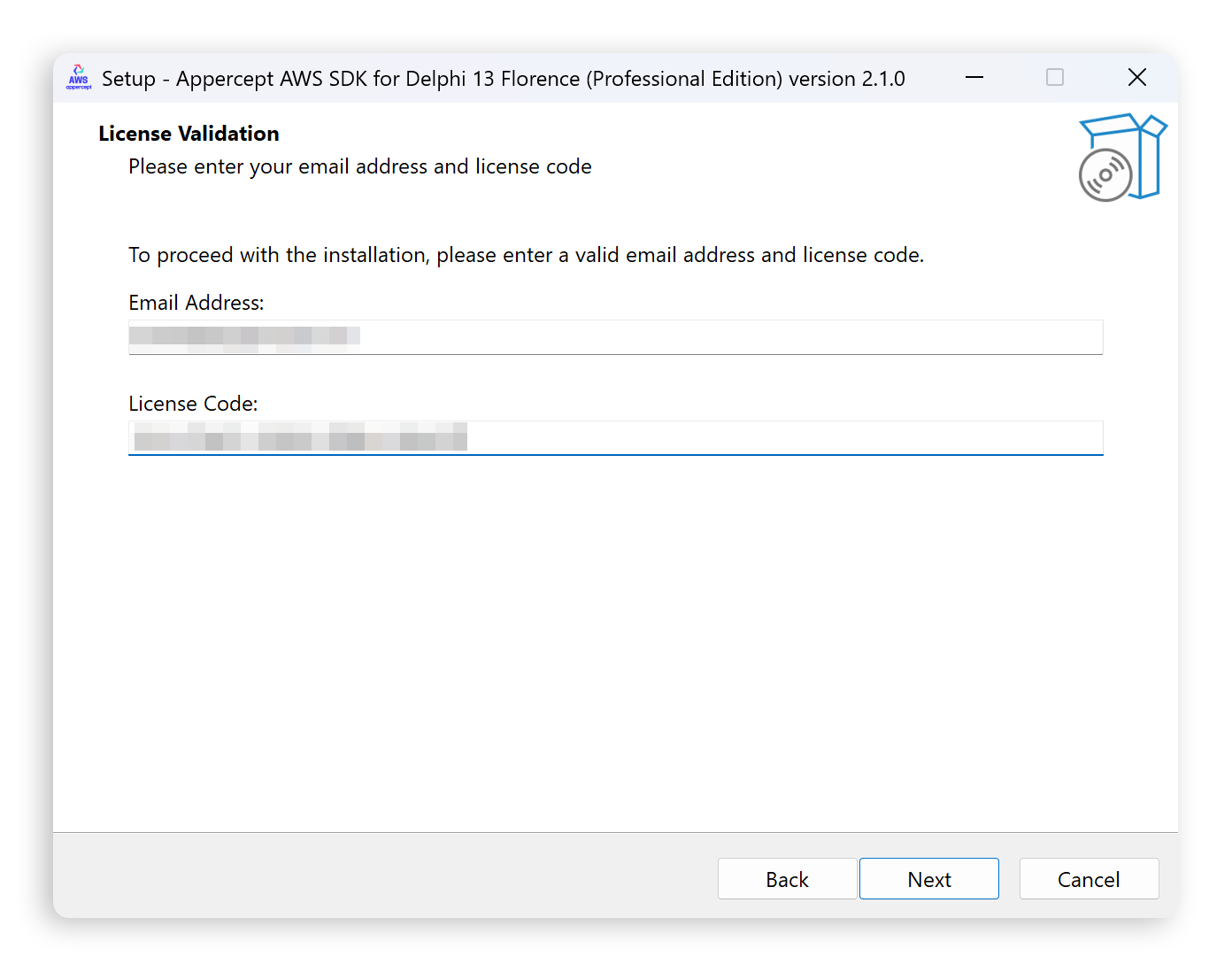
Then licence validation. Enter the email address you registered with and the licence code from your purchase email.
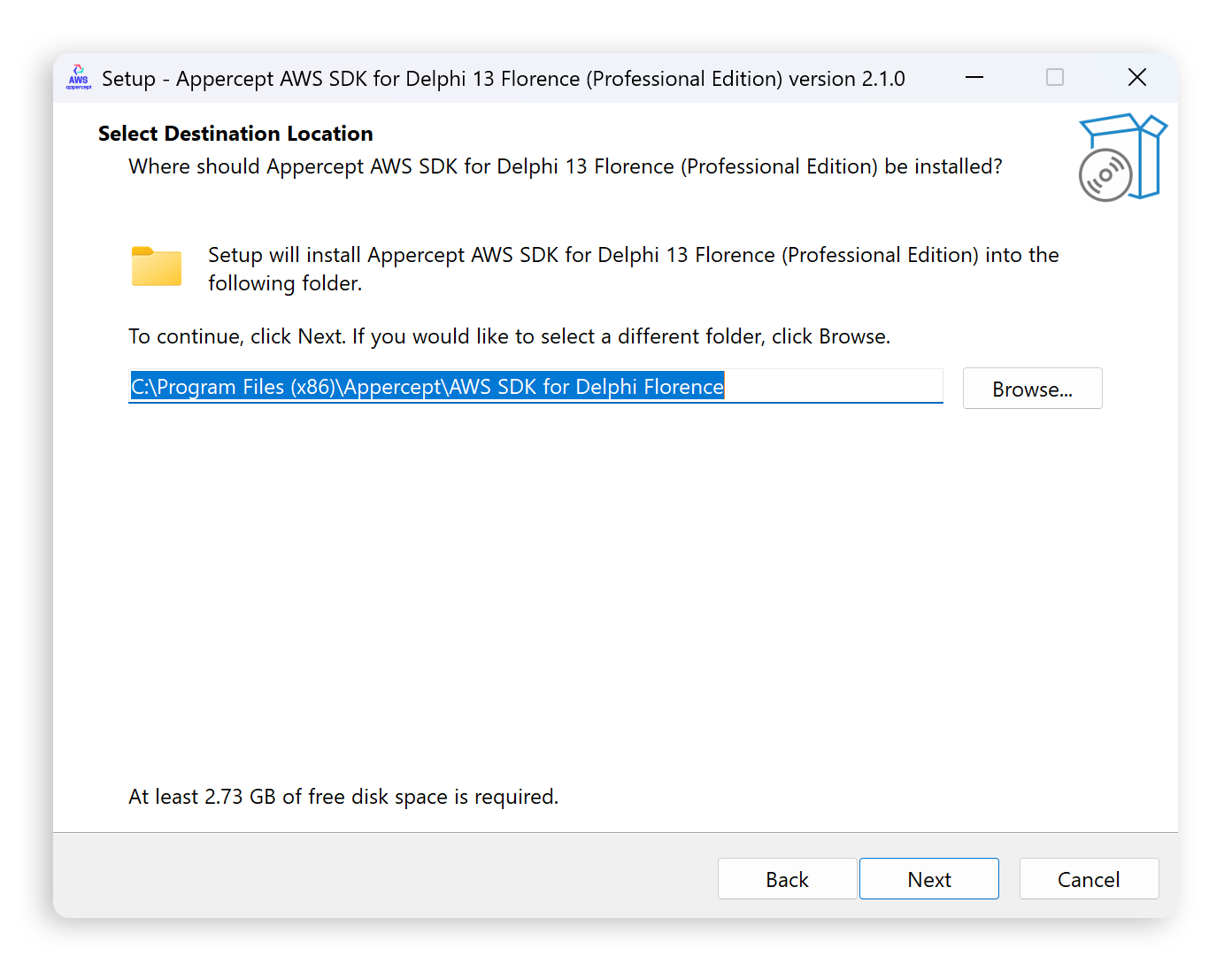
The remaining steps are standard installer fare: choose where the SDK lives, pick a Start Menu folder, and confirm. The installer registers the SDK against your installed Delphi versions for you.
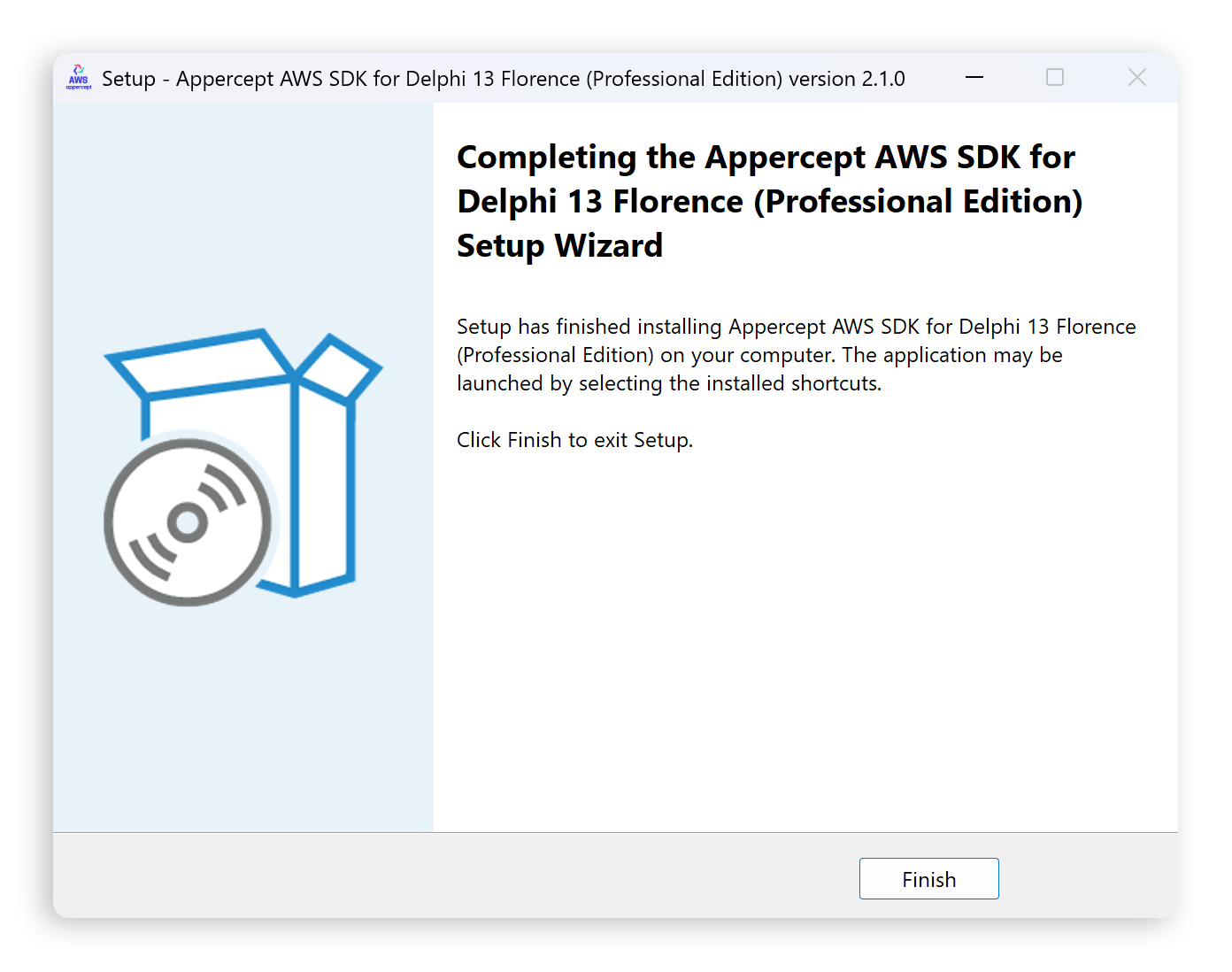
When the installer finishes, the SDK is registered with Delphi and ready to use.
Setting up AWS credentials
The first time you launch Delphi after installing the SDK, a setup wizard appears and walks through the basic configuration.
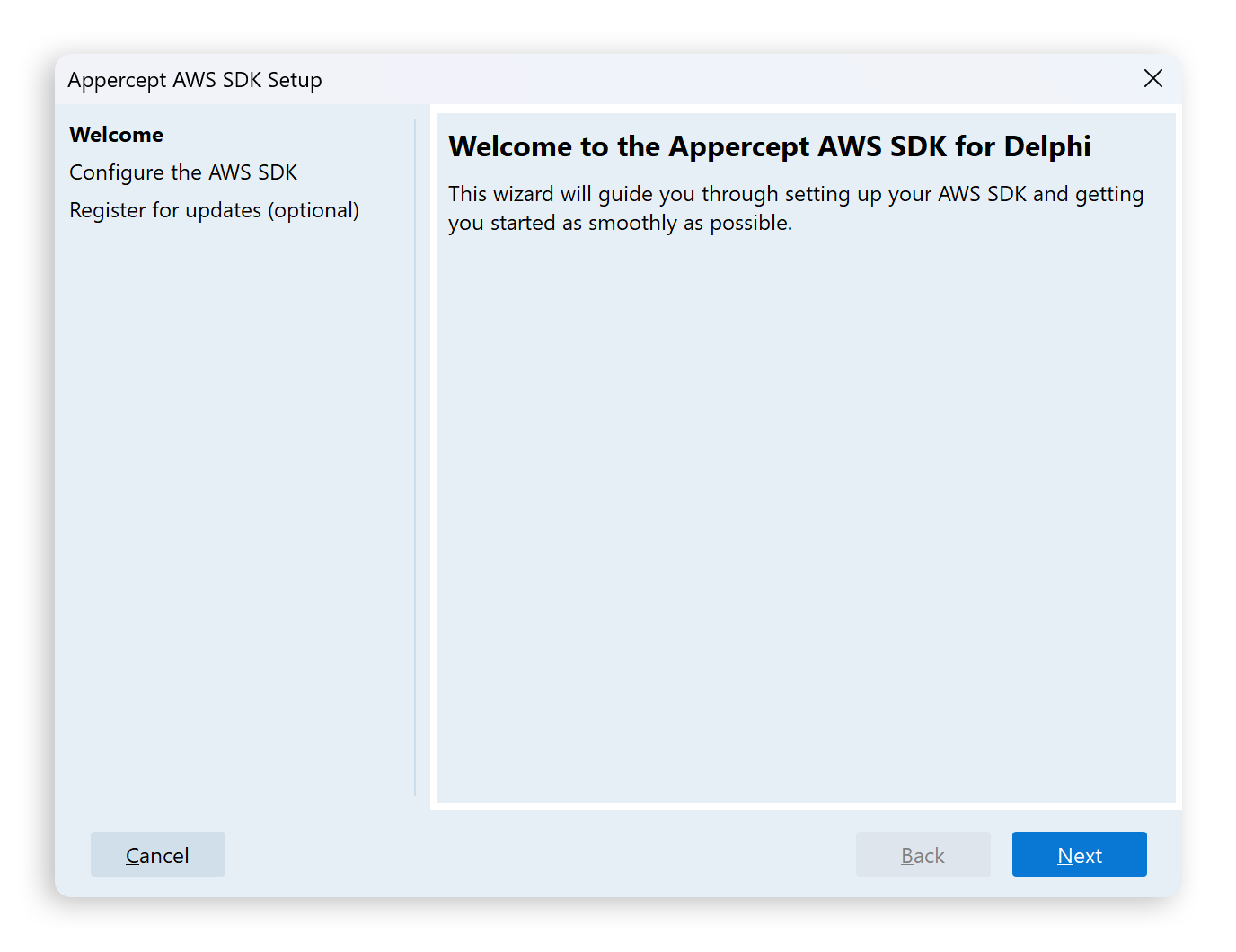
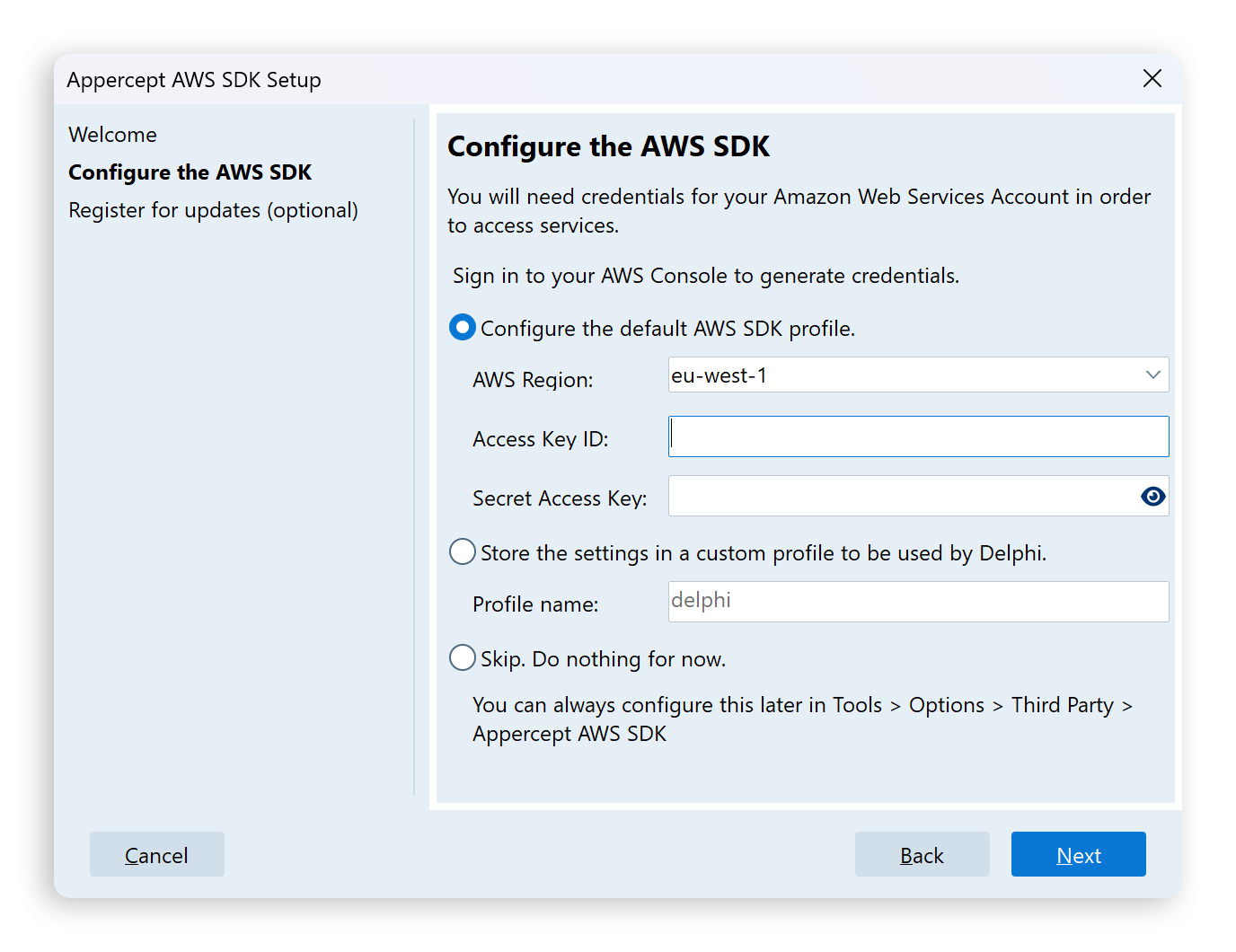
The wizard writes your credentials and a default region to the standard AWS
shared configuration files (~/.aws/config and ~/.aws/credentials). These
are the same files the AWS CLI and every official AWS SDK read from. If you've
used AWS from another language or the CLI before, those credentials are already
in place; pick Skip. Do nothing for now. and the SDK will use what's there.
Otherwise, enter your access key ID, secret access key, and a default region.
Any region with Amazon Translate available will work; us-east-1 and
eu-west-1 are safe defaults if you don't have a preference.
If you skipped the wizard at install time, the same options live at Tools > Options > Third Party > Appercept AWS SDK.
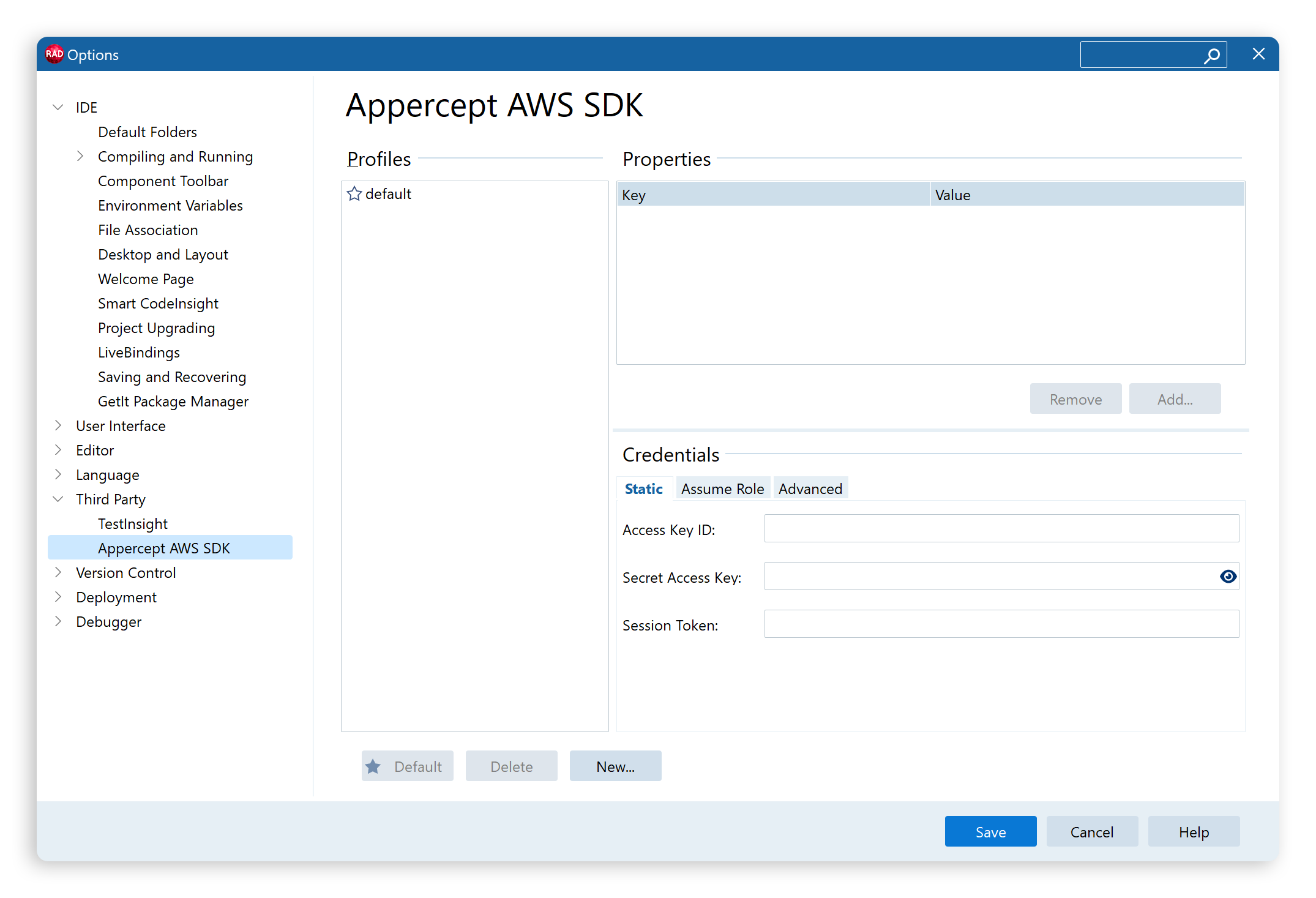
That's enough for this post; the SDK will pick those credentials up automatically. The next post in this series goes wider on the credential model: profiles, environment variables, IAM roles, instance profiles, and ECS task roles, for when your code starts running on machines other than your own.
The Delphi code
Create a new Multi-Device Application (FMX) project. A VCL Forms Application would work the same. Drop a few controls on the form:
SourceMemo: TMemo— where you'll type the text to translate.TargetLanguageComboBox: TComboBox— the language to translate into.TranslateButton: TButton— fires the translation.ResultMemo: TMemo— read-only, shows the translated text.
The form is ordinary Delphi. Nothing on it cares that the call you're about to make goes over the network to a service in another continent.
Populate the combo box from a small array of language codes (FormCreate handler):
const
  LANGUAGES: array[0..4] of record
    Name: string;
    Code: string;
  end = (
    (Name: 'Spanish'; Code: 'es'),
    (Name: 'French';  Code: 'fr'),
    (Name: 'German';  Code: 'de'),
    (Name: 'Japanese'; Code: 'ja'),
    (Name: 'Mandarin Chinese'; Code: 'zh')
  );

procedure TForm1.FormCreate(Sender: TObject);
var
  I: Integer;
begin
  for I := Low(LANGUAGES) to High(LANGUAGES) do
    TargetLanguageComboBox.Items.Add(LANGUAGES[I].Name);
  TargetLanguageComboBox.ItemIndex := 0;
end;
Now the button handler. This is the part that actually talks to AWS:
uses
  AWS.Translate;

procedure TForm1.TranslateButtonClick(Sender: TObject);
var
  Client: ITranslateClient;
  Response: ITranslateTranslateTextResponse;
  TargetLanguageCode: string;
begin
  TargetLanguageCode := LANGUAGES[TargetLanguageComboBox.ItemIndex].Code;
  Client := TTranslateClient.Create;
  Response := Client.TranslateText('auto', TargetLanguageCode, SourceMemo.Text);
  ResultMemo.Text := Response.TranslatedText;
end;
That's the whole AWS-facing surface. Three lines of meaningful work: create a
client, make a request, read the response. The 'auto' source language tells
Translate to detect the input language for you.
TTranslateClient.Create picks up the credentials and region we set earlier.
There's nothing else to configure for this first call.
Running it
Press F9. Type a sentence into the source memo ("The forecast for the weekend looks bright" works well), pick a language, and click Translate. You should see the translated text appear in the result memo within a fraction of a second.
Try a few combinations. English to Japanese is striking the first time you see it; the script change makes the result visible at a glance.
What the response carries
Response.TranslatedText is the obvious one, but the response object holds more.
It tells you which source language Translate detected (useful when you passed
'auto'), the target language code, and details of any applied custom
terminologies. None of it matters for this first program, but it's there when
you need it.
What's next
You now have a Delphi app talking to AWS. Everything else in this series is a variation on the same shape.
Read Credentials for the AWS SDK for Delphi next. It covers the credential provider chain, configuring credentials for different environments, and the exception you'll meet the first time something isn't set up quite right.
Translate isn't the only AI service the SDK exposes. Amazon Polly (text-to-speech), Rekognition (image analysis) and Textract (extracting text from documents and images) all sit behind a similar single-method-call shape. We'll meet them later in the series.
More posts
Self-hosted S3-compatible storage from Delphi
Run your own S3 endpoint and point the AWS SDK for Delphi at it: MinIO, RustFS, and SeaweedFS, one program against all three, and where MinIO's archival leaves things.
Read more →
Build ReadWhatYouSee: Textract, Translate, and Polly together
The series finale: a Delphi app that reads text from an image with Textract, translates it with Translate, and speaks it aloud with Polly.
Read more →
Cloudflare R2 from Delphi
Point the AWS SDK for Delphi at Cloudflare R2: bucket setup, access keys, region and endpoint config, and a worked example end to end.
Read more →